Skip to content

Category: Data Platform

I’m a data geek πŸ€“ In fact, I like data so much that I have made it my career! I work with Azure Data and the Microsoft Data Platform, focusing on Data Integration using Azure Data Factory (ADF), Azure Synapse Analytics, and SQL Server Integration Services (SSIS).

In this category, I write technical posts and guides, and share my experiences with certification exams. You can also find a few interviews with Azure and SQL Server experts!

Azure Data posts may cover topics like Azure Data Factory, Azure Synapse Analytics, Azure SQL Databases, and Azure Data Lake Storage. Microsoft Data Platform posts may cover topics like SQL Server, T-SQL, and SQL Server Management Studio (SSMS), and SQL Server Integration Services (SSIS).

Introduction to Azure Data Factory

Woman standing next to a projector showing the Azure Data Factory logo.

Hi! I’m Cathrine πŸ‘‹πŸ» I really like Azure Data Factory. It’s one of my favorite topics, I can talk about it for hours. But talking about it can only help so many people - the ones who happen to attend an event where I’m presenting a session. So I’ve decided to try something new… I’m going to write an introduction to Azure Data Factory! And not just one blog post. A whole bunch of them.

I’m going to take all the things I like to talk about and turn them into bite-sized blog posts that you can read through at your own pace and reference later. I’ve named this series Beginner’s Guide to Azure Data Factory. You may not be new to ETL, data integration, Azure, or SQL, but we’re going to start completely from scratch when it comes to Azure Data Factory.

Woman pointing to an Azure Data Factory with text saying “Beginner’s Guide to Azure Data Factory”.

Does that sound good? Are you in? Cool. Let’s go!

Table Partitioning in SQL Server - The Basics

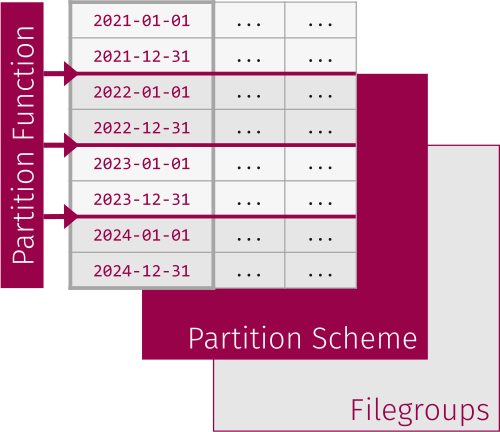
Cheat Sheet of Table Partitioning in SQL Server.

There are many benefits of partitioning large tables. You can speed up loading and archiving of data, you can perform maintenance operations on individual partitions instead of the whole table, and you may be able to improve query performance. However, implementing table partitioning is not a trivial task and you need a good understanding of how it works to implement and use it correctly.

Being a business intelligence and data warehouse developer, not a DBA, it took me a while to understand table partitioning. I had to read a lot, get plenty of hands-on experience and make some mistakes along the way. (The illustration to the left is my Table Partitioning Cheat Sheet.) This post covers the basics of partitioned tables, partition columns, partition functions and partition schemes.

Creating an Azure Data Factory

Woman standing next to a projector showing the Azure Data Factory logo.

In the introduction to Azure Data Factory, we learned a little bit about the history of Azure Data Factory and what you can use it for. In this post, we will be creating an Azure Data Factory and navigating to it.

Spoiler alert! Creating an Azure Data Factory is a fairly quick click-click-click process, and you’re done. But! Before you can do that, you need an Azure Subscription, and the right permissions on that subscription. Let’s get that sorted out first.

Azure Subscription and Permissions

If you don’t already have an Azure Subscription, you can create a free account on azure.microsoft.com/free. (Woohoo! Free! Yay!) Some of the Azure services will always be free, while some are free for the first 12 months. You get $200 worth of credits that last 30 days so you can test and learn the paid Azure services. One tip: Time your free account wisely ⏳

Table Partitioning in SQL Server - Partition Switching

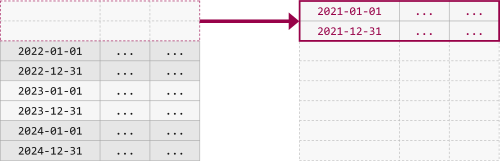
Partition Switching in SQL Server.

Inserts, updates and deletes on large tables can be very slow and expensive, cause locking and blocking, and even fill up the transaction log. One of the main benefits of table partitioning is that you can speed up loading and archiving of data by using partition switching.

Partition switching moves entire partitions between tables almost instantly. It is extremely fast because it is a metadata-only operation that updates the location of the data, no data is physically moved. New data can be loaded to separate tables and then switched in, old data can be switched out to separate tables and then archived or purged. All data preparation and manipulation can be done in separate tables without affecting the partitioned table.

Overview of Azure Data Factory User Interface

Woman standing next to a projector showing the Azure Data Factory logo.

In the previous post, we started byΒ creating an Azure Data Factory, then we navigated to it. In this post, we will navigate inside theΒ Azure Data Factory. Let’s look at the Azure Data Factory user interface and the four Azure Data Factory pages.

Azure Data Factory Pages

On the left side of the screen, you will see the main navigation menu. Click on the arrows to expand and collapse the menu:

Animation of expanding and collapsing the pages menu in the Azure Data Factory user interface.

Overview of Azure Data Factory Components

Woman standing next to a projector showing the Azure Data Factory logo.

In the previous post, we looked at the Azure Data Factory user interface and the four main Azure Data Factory pages. In this post, we will go through the Author page in more detail and look at a few things on the Monitoring page. Let’s look at the different Azure Data Factory components!

Azure Data Factory Components on the Author Page

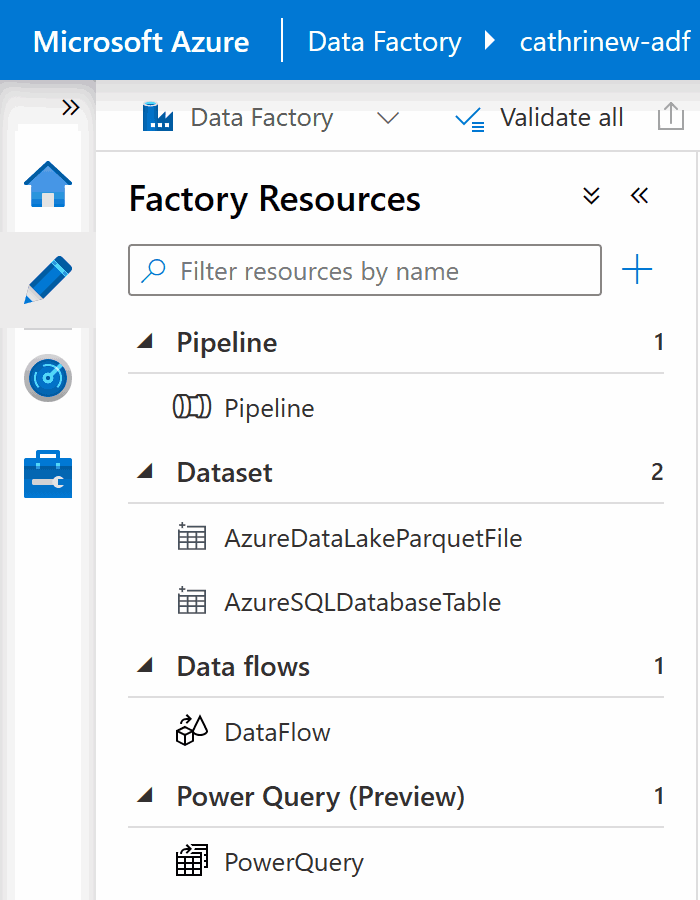
On the left side of the Author page, you will see your factory resources. In this example, we have already created one pipeline, two datasets, one data flow, and one power query:

Screenshot of the Author page in Azure Data Factory, with one Pipeline, two Datasets, and one Data Flow already created.

Let’s go through each of these Azure Data Factory components and explain what they are and what they do.

Copy Data Tool in Azure Data Factory

Woman standing next to a projector showing the Azure Data Factory logo.

In the previous post, we looked at the different Azure Data Factory components. In this post, we’re going to tie everything together and start making things happen. Woohoo! First, we will get familiar with our demo datasets. Then, we will create our Azure Data Lake Storage Account that we will copy data into. Finally, we will start copying data using the Copy Data Tool.

Demo Datasets

First, let’s get familiar with the demo datasets we will be using. I don’t know about you, but I’m a teeny tiny bit tired of the AdventureWorks demos. (I don’t even own a bike…) WideWorldImporters is at least a little more interesting. (Yay, IT joke mugs and chocolate frogs!) But! Let’s use something that might be a little bit more fun to explore.

Let me present… *drumroll* πŸ₯

Pipelines in Azure Data Factory

Woman standing next to a projector showing the Azure Data Factory logo.

In the previous post, we used the Copy Data Tool to copy a file from our demo dataset to our data lake. The Copy Data Tool created all the factory resources for us: pipelines, activities, datasets, and linked services.

In this post, we will go through pipelines in more detail. How do we create and organize them? What are their main properties? Can we edit them without using the graphical user interface?

How do I create pipelines?

So far, we have created a pipeline by using the Copy Data Tool. There are several other ways to create a pipeline.

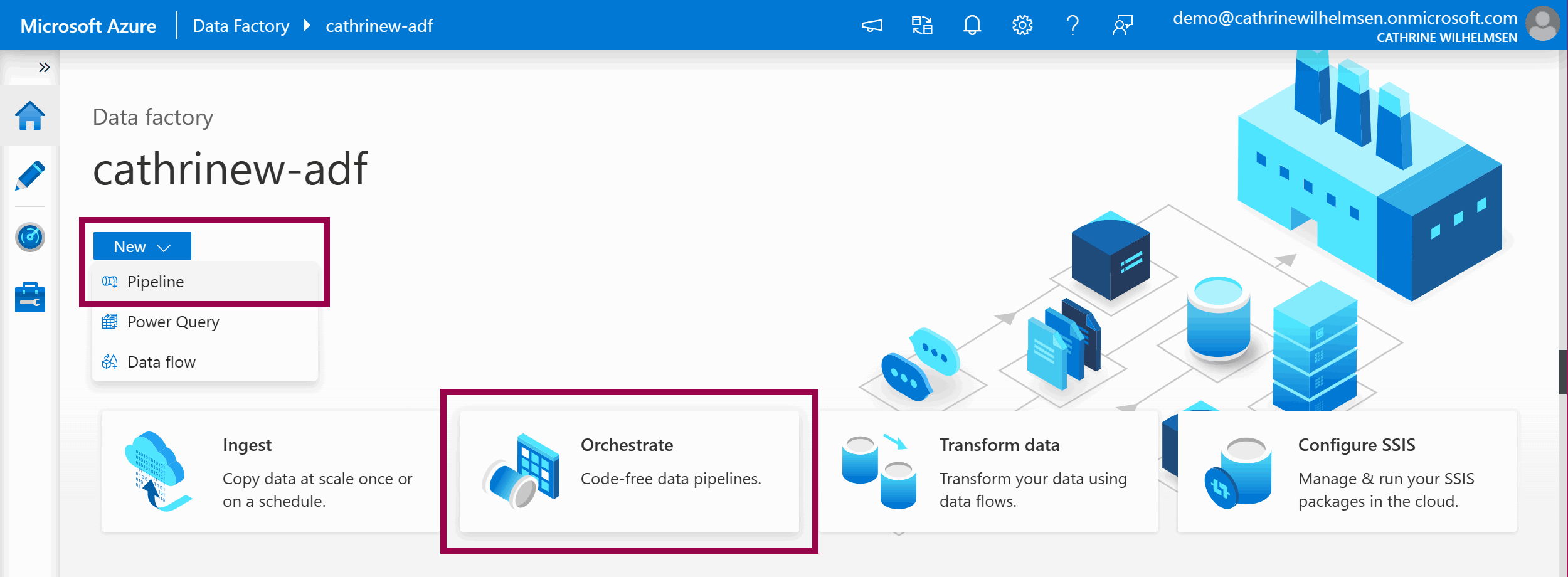
On the Home page, click on the New β†’ Pipeline dropdown menu, or click on the Orchestrate shortcut tile:

Screenshot of the Azure Data Factory Home page with the New Pipeline and Orchestrate tasks highlighted.

Copy Data Activity in Azure Data Factory

Woman standing next to a projector showing the Azure Data Factory logo.

In the previous post, we went through Azure Data Factory pipelines in more detail. In this post, we will dig into the copy data activity. How does it work? How do you configure the settings? And how can you optimize performance while keeping costs down?

Copy Data Activity

Copy Data Activity in Azure Data Factory.

The copy data activity is the core (*) activity in Azure Data Factory.

(* Cathrine’s opinion πŸ€“)

You can copy data to and from more than 90 Software-as-a-Service (SaaS) applications (such as Dynamics 365 and Salesforce), on-premises data stores (such as SQL Server and Oracle), and cloud data stores (such as Azure SQL Database and Amazon S3). During copying, you can define and map columns implicitly or explicitly, convert file formats, and even zip and unzip files – all in one task.

Yeah. It’s powerful! But how does it really work?

Datasets in Azure Data Factory

Woman standing next to a projector showing the Azure Data Factory logo.

In the previous post, we looked at the copy data activity and saw how the source and sink properties changed with the datasets used. In this post, we will take a closer look at some common datasets and their properties.

Let’s start with the source and sink datasets we created in the copy data wizard!

Dataset Names

First, a quick note. If you use the copy data tool, you can change the dataset names by clicking the edit button on the summary page…

Linked Services in Azure Data Factory

Woman standing next to a projector showing the Azure Data Factory logo.

In the previous post, we looked at datasets and their properties. In this post, we will look at linked services in more detail. How do you configure them? What are the authentication options for Azure services? And how do you securely store your credentials?

Let’s start by creating a linked service to an Azure SQL Database. Yep, that linked service you saw screenshots of in the previous post. Mhm, the one I sneakily created already so I could explain using datasets as a bridge to linked services. That one πŸ˜…

Data Flows in Azure Data Factory

Woman standing next to a projector showing the Azure Data Factory logo.

So far in this Azure Data Factory series, we have looked at copying data. We have created pipelines, copy data activities, datasets, and linked services. In this post, we will peek at the second part of the data integration story: using data flows for transforming data.

But first, I need to make a confession. And it’s slightly embarrassing…

I don’t use data flows enough to keep up with all the changes and new features 😳

Don’t get me wrong. I want to! I really, really, really want to. But since I don’t currently use data flows on a daily basis, I struggle to find time to sit down and dig into all the cool new things.

So! In this blog post, I will mostly scratch the surface of data flows, then refer to awesome people with excellent resources so you can learn all the details from them.

Orchestrating Pipelines in Azure Data Factory

Woman standing next to a projector showing the Azure Data Factory logo.

In the previous post, we peeked at the two different data flows in Azure Data Factory, then created a basic mapping data flow. In this post, we will look at orchestrating pipelines using branching, chaining, and the execute pipeline activity.

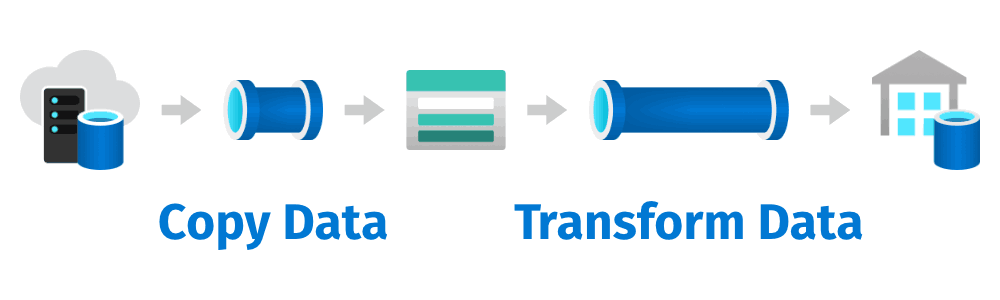
Let’s continue where we left off in the previous post. How do we wire up our solution and make it look something like this?

Diagram showing data being copied and transformed.

We need to make sure that we get the data before we can transform that data.

One way to build this solution is to create a single pipeline with a copy data activity followed by a data flow activity. But! Since we have already created two separate pipelines, and this post is about orchestrating pipelines, let’s go with the second option 😎

Debugging Pipelines in Azure Data Factory

Woman standing next to a projector showing the Azure Data Factory logo.

In the previous post, we looked at orchestrating pipelines using branching, chaining, and the execute pipeline activity. In this post, we will look at debugging pipelines. How do we test our solutions?

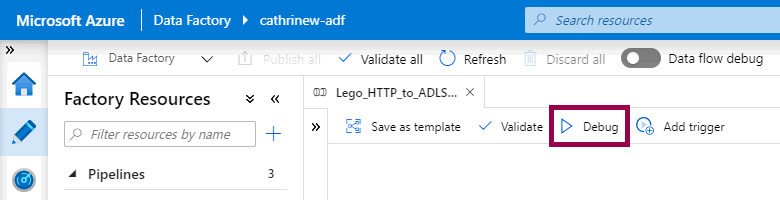
You debug a pipeline by clicking the debug button:

Screenshot of the Azure Data Factory interface, with a pipeline open, and the debug button highlighted

Tadaaa! Blog post done? πŸ˜‚

I joke, I joke, I joke. Debugging pipelines is a one-click operation, but there are a few more things to be aware of. In the rest of this post, we will look at what happens when you debug a pipeline, how to see the debugging output, and how to set breakpoints.

Triggers in Azure Data Factory

Woman standing next to a projector showing the Azure Data Factory logo.

In the previous post, we looked at testing and debugging pipelines. But how do you schedule your pipelines to run automatically? In this post, we will look at the different types of triggers in Azure Data Factory.

Let’s start by looking at the user interface, and dig into the details of the different trigger types.

Monitoring Azure Data Factory

Woman standing next to a projector showing the Azure Data Factory logo.

In the previous post, we looked at the three different trigger types, as well as how to trigger pipelines on-demand. In this post, we will look at what happens after that. How does monitoring work in Azure Data Factory?

Now, if we want to look at monitoring, we probably need something to monitor first. I mean, I could show you a blank dashboard, but I kind of already did that, and that wasn’t really interesting at all πŸ€” So! In the previous post, I created a schedule trigger that runs hourly, added it to my orchestration pipeline, and published it.

Let’s take a look at what has happened since then!

Annotations and User Properties in Azure Data Factory

Woman standing next to a projector showing the Azure Data Factory logo.

In the previous post, we looked at how monitoring and alerting works. But what if we want to customize the monitoring views even further? There are a few ways to do that in Azure Data Factory. In this post, we will add both annotations and custom properties.

But before we do that, let’s look at a few more ways to customize the monitoring views.

Customizing Monitoring Views

In the previous post, we mainly looked at how to configure the monitoring and alerting features. We saw that we could change filters and switch between list and Gantt views, but it’s possible to tweak the interface even more to our liking.

Integration Runtimes in Azure Data Factory

Woman standing next to a projector showing the Azure Data Factory logo.

So far in this series, we have only worked with cloud data stores. But what if we need to work with on-premises data stores? After all, Azure Data Factory is a hybrid data integration service :) To do that, we need to create and configure a self-hosted integration runtime. But before we do that, let’s look at the different types of integration runtimes!

Copy SQL Server Data in Azure Data Factory

Woman standing next to a projector showing the Azure Data Factory logo.

In the previous post, we looked at the three different types of integration runtimes. In this post, we will first create a self-hosted integration runtime. Then, we will create a new linked service and dataset using the self-hosted integration runtime. Finally, we will look at some common techniques and design patterns for copying data from and into an on-premises SQL Server.

And when I say “on-premises”, I really mean “in a private network”. It can either be a SQL Server on-premises on a physical server, or “on-premises” in a virtual machine.

Or, in my case, “on-premises” means a SQL Server 2019 instance running on Linux in a Docker container on my laptop πŸ€“

Executing SSIS Packages in Azure Data Factory

Woman standing next to a projector showing the Azure Data Factory logo.

Two posts ago, we looked at the three types of integration runtimes and created an Azure integration runtime. In the previous post, we created a self-hosted integration runtime for copying SQL Server data. In this post, we will complete the integration runtime part of the series. We will look at what SSIS Lift and Shift is, how to create an Azure-SSIS integration runtime, and how you can start executing SSIS packages in Azure Data Factory.

(And if you don’t work with SSIS, today is an excellent day to take a break from this series. Go do something fun! Like eat some ice cream. I’m totally going to eat ice cream after publishing this post 🍦)

Source Control in Azure Data Factory

Woman standing next to a projector showing the Azure Data Factory logo.

Raise your hand if you have wondered why you can only publish and not save anything in Azure Data Factory πŸ™‹πŸΌβ€β™€οΈ Wouldn’t it be nice if you could save work in progress? Well, you can. You just need to set up source control first! In this post, we will look at why you should use source control, how to set it up, and how to use it inside Azure Data Factory.

And yeah, I usually recommend that you set up source control early in your project, and not on day 19… However, it does require some external configuration, and in this series I wanted to get through the Azure Data Factory basics first. But by now, you should know enough to decide whether or not to commit to Azure Data Factory as your data integration tool of choice.

Get it? Commit to Azure Data Factory? Source Control? Commit? πŸ€“

Ok, that was terrible, I know. But hey, I’ve been writing these posts for 18 days straight now, let me have a few minutes of fun with Wil Wheaton πŸ˜‚

Aaaaanyway!

Templates in Azure Data Factory

Woman standing next to a projector showing the Azure Data Factory logo.

In the previous post, we looked at setting up source control. Once we did that, a new menu popped up under factory resources: templates! In this post, we will take a closer look at this feature. What is the template gallery? How can you create pipelines from templates? And how can you create your own templates?

Let’s hop straight into Azure Data Factory!

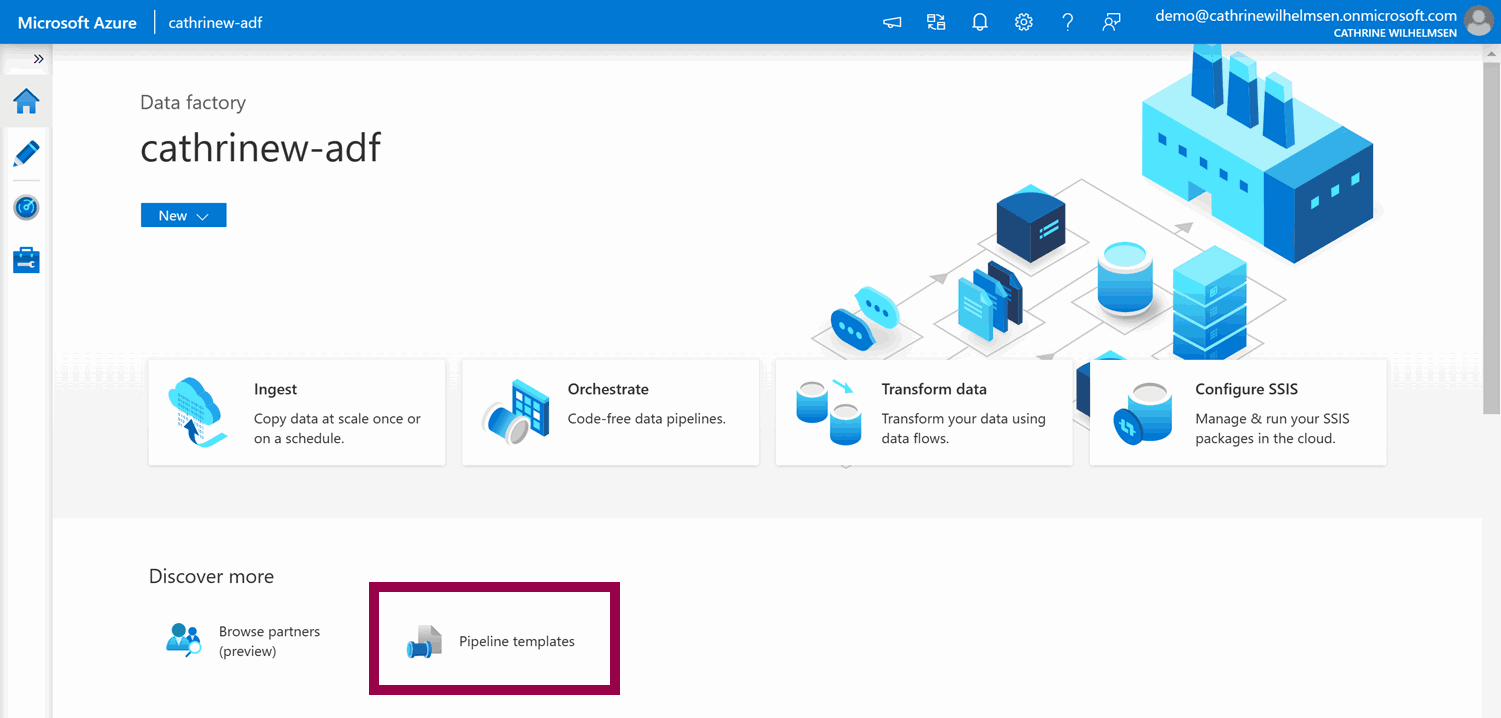
From the Home page, you can create pipelines from templates:

Screenshot of the Azure Data Factory Home page, highlighting the create pipeline from template option

Parameters in Azure Data Factory

Woman standing next to a projector showing the Azure Data Factory logo.

In the last mini-series inside the series (πŸ™ƒ), we will go through how to build dynamic pipelines in Azure Data Factory. In this post, we will look at parameters, expressions, and functions. Later, we will look at variables, loops, and lookups. Fun!

But first, let’s take a step back and discuss why we want to build dynamic pipelines at all.

Variables in Azure Data Factory

Woman standing next to a projector showing the Azure Data Factory logo.

In the previous post, we talked about why you would want to build a dynamic solution, then looked at how to use parameters. In this post, we will look at variables, how they are different from parameters, and how to use the set variable and append variable activities.

Variables

Parameters are external values passed into pipelines. They can’t be changed inside a pipeline. Variables, on the other hand, are internal values that live inside a pipeline. They can be changed inside that pipeline.

Parameters and variables can be completely separate, or they can work together. For example, you can pass a parameter into a pipeline, and then use that parameter value in a set variable or append variable activity.

ForEach Loops in Azure Data Factory

Woman standing next to a projector showing the Azure Data Factory logo.

In the previous post, we looked at how to use variables in pipelines. We took a sneak peek at working with anΒ array, but we didn’t actuallyΒ doΒ anything with it. But now, we will! In this post, we will look at how to use arrays to control foreach loops.

ForEach Loops

You can use foreach loops to execute the same set of activities or pipelines multiple times, with different values each time. A foreach loop iterates over a collection. That collection can be either an array or a more complex object. Inside the loop, you can reference the current value using @item().

Let’s take a look at how this works in Azure Data Factory!

Lookups in Azure Data Factory

Woman standing next to a projector showing the Azure Data Factory logo.

In the previous post, we looked at foreach loops and how to control them using arrays. But you can also control them using more complex objects! In this post, we will look at lookups. How do they work? What can you use them for? And how do you use the output in later activities, like controlling foreach loops?

Lookups

Lookup activity in Azure Data Factory.

Lookups are similar to copy data activities, except that you only get data from lookups. They have a source dataset, but they do not have a sink dataset. (So, like… half a copy data activity? πŸ˜„) Instead of copying data into a destination, you use lookups to get configuration values that you use in later activities.

And how you use the configuration values in later activities depends on whether you choose to get the first row only or all rows.

But before we dig into that, let’s create the configuration datasets!

Understanding Pricing in Azure Data Factory

Woman standing next to a projector showing the Azure Data Factory logo.

Congratulations! You’ve made it through my entire Beginner’s Guide to Azure Data Factory πŸ€“ We’ve gone through the fundamentals in the first 24 posts, and now we just have one more thing to talk about: Pricing.

And today, I’m actually going to talk! You see, in January 2022, I presented a 10-minute session at DataMinutes about understanding pipeline pricing in Azure Data Factory and Azure Synapse Analytics. And since it was recorded and the recording is available for free for everyone… Well, let’s just say that after 24 posts, I think we could both appreciate a short break from reading and writing πŸ˜…

Azure Data Factory Resources

Woman standing next to a projector showing the Azure Data Factory logo.

For the past 25 days, I have written one blog post per day about Azure Data Factory. My goal was to start completely from scratch and cover the fundamentals in casual, bite-sized blog posts. This became the Beginner’s Guide to Azure Data Factory. Today, I will share a bunch of resources to help you continue your own learning journey.

I’ve already seen from your questions and comments that you are ready to jump way ahead and dive into way more advanced topics than I ever intended this series to cover πŸ˜‰ And as much as I love Azure Data Factory, I can’t cover everything. So a little further down, I will share where and how and from who you can continue learning about Azure Data Factory.

But first…

That’s a wrap!

That’s a wrap! Woohoo πŸ₯³

Solving FizzBuzz using SQL

Script icon.

This week, my coworkers and I were given a fun challenge. Using any tool or language, solve FizzBuzz! πŸ€“ Then present and explain the solution to the rest of the team. This was a fun challenge because our team is a mix of junior-to-senior developers and data professionals, working with everything from SQL to Python to C# to DAX to PowerShell. Those who had never solved FizzBuzz before got the chance to do so, while those who had already solved it got the chance to try again using a different tool or language.

While working on my solution, I ended up searching my own website for a post I wrote years ago: Using a Numbers Table in SQL Server. It gave me a nudge to share my FizzBuzz process and solution as well, even if there are a bazillion solutions already out there. I keep telling others to share what they do and learn, so this time I’m actually going to take my own advice. Go me! πŸ˜„

The FizzBuzz Challenge

FizzBuzz might be one of the most common programming challenges. The goal is to list all numbers from 1-100, but if a number is divisible by 3 you replace it with Fizz, if a number is divisible by 5 you replace it with Buzz, and if a number is divisible by both 3 and 5 you replace it with FizzBuzz:

  1. 1
  2. 2
  3. Fizz
  4. 4
  5. Buzz
  6. Fizz
  7. 7
  8. 8
  9. Fizz
  10. Buzz

…and so on.

Solving FizzBuzz in SQL

My first idea was to simply insert all values into a table and do a SELECT *, but I also wanted to actually solve the challenge πŸ˜‚

Step 1: List all numbers from 1-100

I came up with three approaches using ROW_NUMBER() to list all numbers from 1-100.

My first approach was to query sys.all_objects:

SELECT TOP (100)
  ROW_NUMBER() OVER (ORDER BY (SELECT NULL)) AS n
FROM sys.all_objects
ORDER BY n;

This felt a little too quick and dirty, though.

Next, I wanted to see if I could list the numbers without querying a table/view. At this point, I had the idea of a numbers table (or tally table) in my mind, since I have used and blogged about it in the past. I just couldn’t remember the syntax! πŸ˜… So I boiled my logic down to “let’s just create 10 x 10 rows”. By using VALUES, I created two virtual tables with 10 rows (each containing the value 1), then cross joined the two tables:

SELECT
  ROW_NUMBER() OVER (ORDER BY (SELECT NULL)) AS n
FROM (
  VALUES (1), (1), (1), (1), (1), (1), (1), (1), (1), (1)
) AS t1(n)
CROSS JOIN (
  VALUES (1), (1), (1), (1), (1), (1), (1), (1), (1), (1)
) AS t2(n)
ORDER BY n;

Finally, I looked up my numbers table syntax:

WITH
  L0   AS (SELECT 1 AS n UNION ALL SELECT 1),              -- 2 rows
  L1   AS (SELECT 1 AS n FROM L0 AS a CROSS JOIN L0 AS b), -- 4 rows (2 x 2)
  L2   AS (SELECT 1 AS n FROM L1 AS a CROSS JOIN L1 AS b), -- 16 rows (4 x 4)
  L3   AS (SELECT 1 AS n FROM L2 AS a CROSS JOIN L2 AS b), -- 256 rows (16 x 16)
  L4   AS (SELECT 1 AS n FROM L3 AS a CROSS JOIN L3 AS b), -- 65 536 rows (256 x 256)
  L5   AS (SELECT 1 AS n FROM L4 AS a CROSS JOIN L4 AS b), -- 4 294 967 296 rows (65 536 x 65 536)
  Nums AS (SELECT ROW_NUMBER() OVER (ORDER BY (SELECT NULL)) AS n FROM L5)
SELECT TOP (100) 
  n 
FROM Nums 
ORDER BY n;

Step 2: Replace numbers with Fizz, Buzz, or FizzBuzz

Once I had figured out how to list the numbers, I needed to replace the numbers with Fizz, Buzz, and FizzBuzz. The challenge here, in any programming language, is to understand how to check whether a number is divisible by another number, and to understand in which order things are evaluated.

In SQL, you can use the % (modulus) operator to return the remainder after dividing one number by another. If the result is 0, it means that it is divisible.

(Fun fact: The first time I encountered the modulus operator, I thought that it returned the digit(s) after the decimal symbol. As in, I thought that 10 % 4 would return 5 because 10 / 4 = 2.5. Imagine my surprise when it returned 2! Why 2? And then I realized that ohhh, it’s because you can only fully fit the number 4 two times inside 10, and then you have 2 remaining… What can I say, math is difficult enough in my first language! πŸ˜…)

The final step is to construct the CASE expression so that it evaluates FizzBuzz first:

WITH
  L0   AS (SELECT 1 AS n UNION ALL SELECT 1),
  L1   AS (SELECT 1 AS n FROM L0 AS a CROSS JOIN L0 AS b),
  L2   AS (SELECT 1 AS n FROM L1 AS a CROSS JOIN L1 AS b),
  L3   AS (SELECT 1 AS n FROM L2 AS a CROSS JOIN L2 AS b),
  L4   AS (SELECT 1 AS n FROM L3 AS a CROSS JOIN L3 AS b),
  L5   AS (SELECT 1 AS n FROM L4 AS a CROSS JOIN L4 AS b),
  Nums AS (SELECT ROW_NUMBER() OVER (ORDER BY (SELECT NULL)) AS n FROM L5)
SELECT TOP (100)
  CASE
    WHEN n % 3 = 0 AND n % 5 = 0 THEN 'FizzBuzz'
    WHEN n % 3 = 0 THEN 'Fizz'
    WHEN n % 5 = 0 THEN 'Buzz'
    ELSE CAST(n AS VARCHAR(3))
  END
FROM Nums
ORDER BY n;

Or, if you really just want that quick and dirty solution… 😁

SELECT TOP (100)
  CASE
    WHEN n % 15 = 0 THEN 'FizzBuzz'
    WHEN n % 3 = 0 THEN 'Fizz'
    WHEN n % 5 = 0 THEN 'Buzz'
    ELSE CAST(n AS VARCHAR(3))
  END
FROM (SELECT ROW_NUMBER() OVER (ORDER BY (SELECT NULL)) AS n FROM sys.all_objects) AS t;

Your Turn!

How would you solve the FizzBuzz challenge? Can you think of a completely different approach? Can you fix my code and make it better or prettier? Go on, do it, it’s fun! πŸ˜ƒ

Ingest and Explore LEGO Datasets using Pipelines and Serverless SQL in Azure Synapse Analytics

Woman standing next to a projector showing the Azure Synapse Analytics logo.

In the April session of the Azure Synapse Analytics and Microsoft MVP series, I got to show one of my favorite demos: ingesting and exploring LEGO datasets! πŸ€“ In just a few minutes, I grab a compressed file from the web, decompress it, store it as a Parquet file in my data lake, and run SQL queries on it using Serverless SQL. It really is that simple:

If you want to try this demo yourself, you can follow the detailed steps below. Have fun! πŸ˜ƒ

Failed to Subscribe / Failed to Activate Storage Event Trigger After Publishing in Azure Synapse Analytics

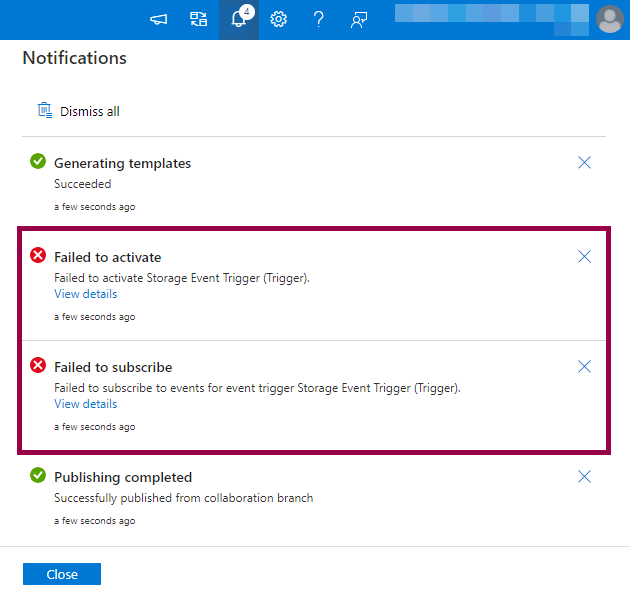
I ran into an issue today while trying to publish a storage event trigger in Azure Synapse Analytics. After publishing, I got error messages that said “failed to subscribe” and “failed to activate”. The storage event trigger had been published, but it wouldn’t start. Help! 😱

Screenshot of Azure Synapse Analytics notifications showing “failed to subscribe” and “failed to activate” errors.

(Skip to how I fixed the failed to subscribe / failed to activate errors πŸ‘‡πŸ»)

The Error Messages

The error messages hinted at access control or permission issues:

Connecting to HubSpot from Azure Synapse Analytics or Azure Data Factory

HubSpot logo.

I spent a couple of hours today figuring out how to connect to HubSpot from Azure Synapse Analytics. Since it wasn’t straightforward for me, I decided to blog about how I did it. Hopefully, this post can help one or two others (or future me!) save some time 😊

The HubSpot Linked Service

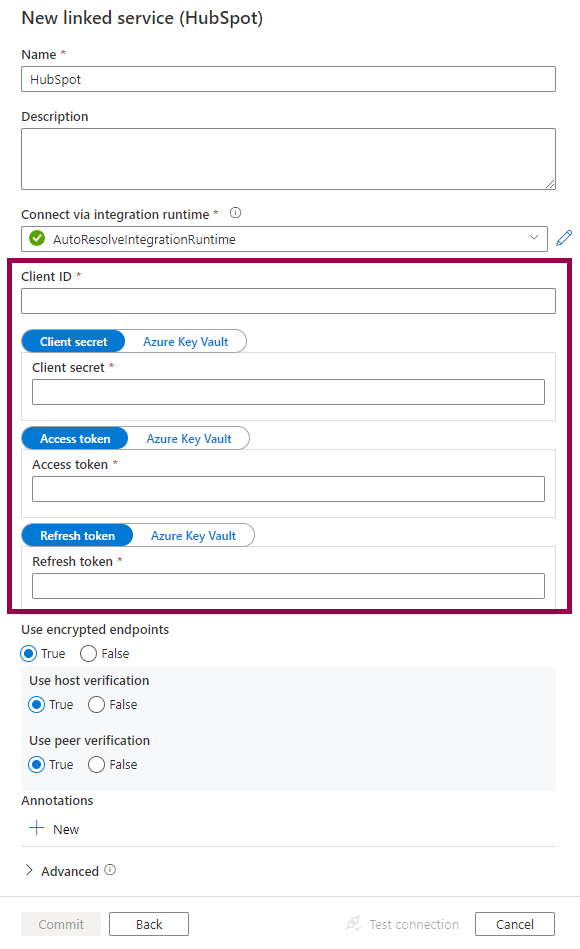
The Azure Synapse Analytics (or Azure Data Factory) linked service connects to HubSpot using a Client ID, Client Secret, Access Token, and Refresh Token:

Screenshot of the HubSpot linked service.

How do we get these values from HubSpot?

The overall process is to:

  1. Create a private app in HubSpot to get the Client ID and Client Secret
  2. Authorize the private app and get authorization code
  3. Exchange authorization code for Access Token and Refresh Token
  4. Create linked service in Azure Synapse Analytics or Azure Data Factory

Let’s dig into the details! πŸ€“

Preparing for and Taking Microsoft Exam DP-900 (Azure Data Fundamentals)

Microsoft Certification Exam Badge for Exam DP-900.

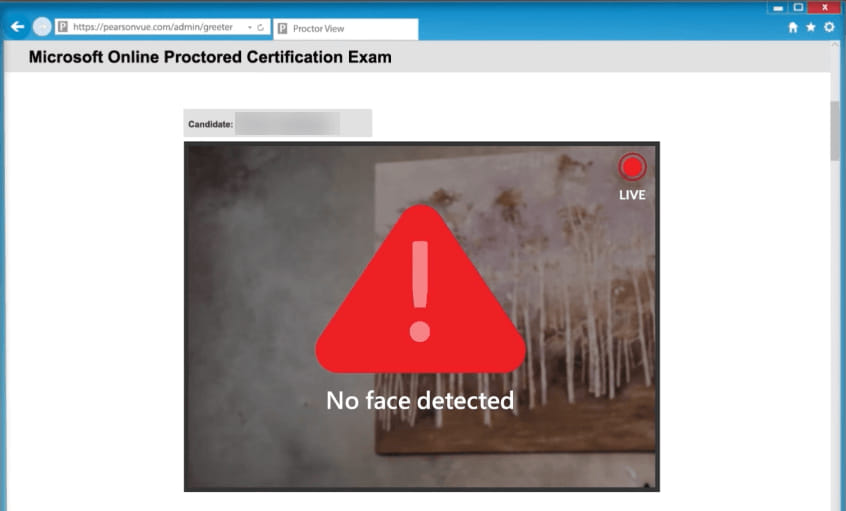
On September 28th, 2021, I passed exam DP-900: Azure Data Fundamentals, yay! πŸ₯³ The exam is mainly intended for those who are new to working with the Azure data platform, but is also required for achieving Microsoft partner status in the Data Platform competency.

In this post, I share how I prepared for the exam and what my experience was like on the day of the exam.

Renaming the default branch in Azure Data Factory Git repositories from "master" to "main"

Branch icon.

In Azure Data Factory, you can connect to a Git repository using either GitHub or Azure DevOps. When connecting, you have to specify which collaboration branch to use. In most cases, the default branch is used. Historically, the default branch name in git repositories has been “master”. This is problematic because it is not inclusive and is very offensive to many people.

The Git project, GitHub, and Azure DevOps are making changes to allow users to specify a different default branch name. GitHub and Azure DevOps will be changing their default branch names to “main” in 2020. I fully support this change and will be doing the same in my projects.

In this post, we will go through how to rename the default branch from “master” to “main” in Azure Data Factory Git repositories hosted in GitHub and Azure DevOps. Then we will reconnect Azure Data Factory and configure it to use the new “main” branch as the collaboration branch.

For these examples, I’m using my personal demo projects. I’m not taking into consideration any branch policies, other users, third-party tools, or external dependencies. As always, keep in mind that this is most likely a larger change, both technically and organizationally, in production and enterprise projects. 😊

The Short Version

  1. Create a new “main” branch in your Git repository
  2. Set the new “main” branch as the default branch in your Git repository
  3. Delete the old “master” branch in your Git repository
  4. Disconnect from your Git repository in Azure Data Factory
  5. Reconnect to your Git repository in Azure Data Factory using the new “main” branch as the collaboration branch

Preparing for and Taking Microsoft Exam DP-201 (Designing an Azure Data Solution)

Microsoft Certification Exam Badge for Exam DP-201.

On January 31st, 2019, Microsoft released two new Azure Data exams:Β Implementing an Azure Data SolutionΒ (DP-200) andΒ Designing an Azure Data SolutionΒ (DP-201). If you pass both of these exams, you become a Microsoft CertifiedΒ Azure Data Engineer Associate. On June 17th, 2019, I passed DP-201: Designing an Azure Data Solution! Yay πŸ₯³

In this post, I share how I prepared for the exam and what my experience was like on the day of the exam.

(I have previously also written about Exam DP-200. )

Preparing for and Taking Microsoft Exam DP-200 (Implementing an Azure Data Solution)

Microsoft Certification Exam Badge for Exam DP-200.

On January 31st, 2019, Microsoft released two new Azure Data exams: Implementing an Azure Data Solution (DP-200) and Designing an Azure Data Solution (DP-201). If you pass both of these exams, you become a Microsoft Certified Azure Data Engineer Associate. On May 24th, 2019, I passed DP-200: Implementing an Azure Data Solution! Yay πŸ₯³

In this post, I share how I prepared for the exam and what my experience was like on the day of the exam.

(I have later also written about Exam DP-201.)

Comparing Mapping and Wrangling Data Flows in Azure Data Factory

In 2019, the Azure Data Factory team announced two exciting features. The first was Mapping Data Flows (currently in Public Preview), and the second was Wrangling Data Flows (currently in Limited Private Preview). Since then, I have heard many questions. One of the more common questions is “which should I use?” In this blog post, we will be comparing Mapping and Wrangling Data Flows to hopefully make it a little easier for you to answer that question.

Illustration of person Comparing Mapping and Wrangling Data Flows in Azure Data Factory.

Should you use Mapping or Wrangling Data Flows?

Now, we all know that the consultant answer to “which should I use?” is It Depends β„’ πŸ˜„ But what does it depend on?

To me, it boils down to a few key questions you need to ask:

  • What is the task or problem you are trying to solve?
  • Where and how will you use the output?
  • Which tool are you most comfortable using?

Before we dig further into these questions, let’s start with comparing Mapping and Wrangling Data Flows.

Handling Schema Drift in Azure Data Factory

On April 4th, 2019, I presented my Pipelines and Packages: Introduction to Azure Data Factory session at 24 Hours of PASS. I was excited to show some cool features and use cases, including how to handle schema drift in the new Mapping Data Flows feature.

Aaaaand… I failed! πŸ€¦πŸΌβ€β™€οΈ

Illustration of a person with a bomb as a head saying “oh no!”.

Or, more specifically, my demo failed…

…when you test your demo three times and everything is fine, then it fails in your live session, but runs perfectly again once the session is over… πŸ˜‚

How to find a Dataset ID in Power BI

Power BI logo.

Today, I had to get a single dataset ID from a report I had deployed to the Power BI Service. I quickly realized I had no idea where or how to get it! Turns out, it’s super fast to find - ifΒ youΒ knowΒ whereΒ toΒ look πŸ˜…

Since I had to click around for a bit, do some searches, and get sidetracked in the REST APIs and PowerShell Cmdlets before I finally realized the ID was staring me right in the face all along, I figured I’d share this quick tip. That way, the next time I search for it, I might find my own blog post πŸ˜‚ And who knows, maybe it can help one or two others?

Video: Azure Data Factory Data Flows Introduction

Azure Data Factory Logo.

In January 2019, I was honored to be asked to contribute to the PASS Insights BI Edition Newsletter. I said yes, of course! 😊 I chose to create an Azure Data Factory Data Flows introduction video. This is a sneak preview of the upcoming Data Flows feature, with a quick walkthrough of how easy it can be to create scalable data transformations in the cloud - without writing any code!

Creating a SQL Server 2019 Demo Environment in a Docker Container

Docker logo.

About a month ago, I learned something new. I learned how to run SQL Server 2019 in Docker and how to set up my demo environment in a container. Cool stuff! I like whales. Whales are cool.

While learning, I started writing this blog post. Then I got distractedΒ and never finished it. This weekend, I had to set up my demo environment again. It was the perfect opportunity to update the content and finally publish this post.

(Why did I have to set up everything again? Oh, it’s a long story that involves disk cleanup and a Cathrine who likes to delete things to keep her computer tidy. Ok, it’s not really a long story. It was more like “oops, I accidentally deleted my container”.)

Anyway! Back to the actual content.

In this post, I share my approach and code snippets for:

  1. Installing Docker
  2. Getting SQL Server 2019
  3. Running SQL Server 2019 in a Docker Container
  4. Restoring Demo Databases (AdventureWorks and WideWorldImporters)

Installing Docker

I knewΒ nothing about Docker or containers a month ago. But! I’m lucky to have smart friends 🀩 Andrew Pruski (@dbafromthecold) wroteΒ Running SQL Server 2019 CTP in a DockerΒ containerΒ as part of his brilliant blog post series on containers.

I decided to start with his walkthrough and do exactly what he did. It worked pretty well for me! See below πŸ‘‡πŸ»

Interview about Azure Data Factory Updates

Last year at Microsoft Ignite, I was fortunate enough to interview Mike Flasko and Sanjay Krishnamurthi. This year, I got to have a follow-up chat with Mike Flasko and Sharon Lo! We talked about the recent and upcoming Azure Data Factory updates πŸ€“

In this interview, Mike and Sharon share the highlights from their session at Microsoft Ignite 2018. What are visual Data Flows? How are Azure Data Factory Data Flows different from the recently announced Power BI Dataflows? What’s on the Azure Data Factory roadmap? And finally, how can you provide feedback and get involved in private previews?

Azure Data Factory Updates with Mike Flasko and Sharon Lo

(I apologize for the unsteady video πŸ˜” Unfortunately, I didn’t see how shaky it was until post-production. If it gets too distracting to watch, please just listen. Mike and Sharon share a lot of interesting things!)

Thank you so much to Mike and Sharon for chatting with me on a busy day πŸ˜ƒ

Azure Data Factory v2 with Mike Flasko

One of the sessions I was most looking forward to at Microsoft Ignite 2017 was New capabilities for data integration in the cloud with Mike Flasko. In that session, he talks about Azure Data Factory (ADF) v2 and its new first-class SSIS support.

After the session, I convinced Mike Flasko and Sanjay Krishnamurthi to have a chat with me πŸ€“ We talked about what’s new in Azure Data Factory v2, including the updated pipeline application model with a new visual design canvas, new Software Development Kits (SDKs) for working with Azure Data Factory, the new Integration Runtime, and the ability to run SSIS packages inside Azure Data Factory v2.

Azure Data Factory v2 with Mike Flasko

High Performance Analytics with Sunil Agarwal

At Microsoft Ignite 2017, I had planned an interview with Sunil Agarwal, and was very excited about it. Then Sunil asked if he could bring Kevin Farlee. Of course! Then he asked if he could also bring their customer, Aaron Gerdeman from FIS. Even better! 😁

In this interview, we chat about SQL Server 2017, Resumable Index Builds, Adaptive Query Processing, Columnstore Indexes, High Availability, Real-time Analytics, Real-time Dashboards and the SQL Tiger Team.

High Performance Analytics with Sunil Agarwal, Kevin Farlee, Aaron Gerdeman

SQL Server 2017 with Bob Ward

During Microsoft Ignite 2017, I got to interview one of the nicest guys in Microsoft, Bob Ward! 🀩

In this interview, we chat about SQL Server 2017, SQL Server on Linux, Adaptive Query Processing, Auto Plan Correction and Columnstore Indexes.

SQL Server 2017 with Bob Ward - Microsoft Ignite 2017

Data Science with Buck Woody

I got to interview Buck Woody about Data Science at Microsoft Ignite 2017! πŸ₯³

In this interview, we chat about Microsoft Business Analytics and AI (formerly known as Cortana Intelligence Suite), Artificial Intelligence in Excel, intent-based programming, Predictive Analytics, DevOps for Data Scientists and life-long learning.

Data Science with Buck Woody - Microsoft Ignite 2017

Batch update properties in SSIS packages (T-SQL Tuesday #68)

T-SQL Tuesday logo.

T-SQL Tuesday #68 is hosted by Andy Yun (@SQLBek). Many SQL Server defaults are not ideal, and most of us have a list of defaults we always change. Andy wants us to Just Say No to Defaults and blog about what, why or how we change defaults.

If you are an SSIS developer like me, there is a big chance that the ProtectionLevel in SSIS Packages is on top of your list of defaults to change. The default ProtectionLevel is EncryptSensitiveWithUserKey (ugh), but most of the time it is not the best option. Raise your hand if you have ever asked your favorite search engine for advice on issues like “SSIS package fails in SQL Server Agent job” or if you have ever heard someone exclaim “but it works on my machine!?” πŸ˜…

There are many great blog posts about the different ProtectionLevels, why you probably want to change to DontSaveSensitive as your default, and how to use configurations and parameters instead of encrypted SSIS packages. I will not go into details about any of that in this post, but I will use ProtectionLevel as an example default property you want to change in many SSIS packages at the same time.

How do you batch update properties in existing SSIS packages? You probably don’t want to open up every single package and change them manually?

Custom Real Time Monitoring Solution (T-SQL Tuesday #66)

T-SQL Tuesday logo.

T-SQL Tuesday #66 is hosted by me (yay, fun!) and is all about monitoring. We all monitor something while working with SQL Server, and there are so many topics to choose from. As a Data Warehouse developer I use Adam Machanic’s sp_WhoIsActive all the time, I look at the Integration Services Dashboard in SSMS to monitor SSIS package executions and I check the Job Activity Monitor for a quick overview of what’s currently running on our servers.

However, I decided to write about a custom Real Time Monitoring solution we use in my company (Storebrand) that my coworkers in Lithuania created. I couldn’t resist this opportunity to show one of our cool solutions that I get to use and to brag about how talented my coworkers are πŸ‘πŸ»

Invitation to T-SQL Tuesday #66: Monitoring

T-SQL Tuesday logo.

Welcome to T-SQL Tuesday #66! My name is Cathrine Wilhelmsen (@cathrinew) and I’m very happy to be your host for the T-SQL Tuesday on May 12th, 2015. The topic of the month is monitoring.

Much Monitoring in the Month of May

We all monitor something while working with SQL Server: Maybe you’re a DBA who monitors database performance, an SSIS developer who monitors job and package execution, an application developer who monitors queries or a BI analyst who monitors report usage? Do you use T-SQL or PowerShell scripts? Have you created your own monitoring reports or applications? Have you invested in a complete monitoring solution from a vendor? What is monitored manually and what is automated with alerts? If a brand new SQL Server professional in your role asks you for advice, what do you say is the number one most important thing to monitor? Have you ever stayed awake for a week solving a problem that could have been avoided with proper monitoring? Did you implement a monitoring solution that saved your company?

Using a Numbers Table in SQL Server to insert test data (T-SQL Tuesday #65)

T-SQL Tuesday logo.

T-SQL Tuesday #65 is hosted by Mike Donnelly (@SQLMD). There is no specific topic to write about this month, Mike simply wants us to learn something new and then write a blog post to teach it to others. I want to share something that I only recently learned, something I wish I had known about years ago, something that became part of my toolbox as soon as I discovered it: the Numbers Table. It is so simple and solves so many problems that everyone should know about it πŸ€“

A Numbers Table (perhaps most known as a Tally Table, sometimes called an Auxiliary Table of Numbers and even referred to as the Swiss Army Knife of SQL Server) is a one-column helper table that contains the numbers 1, 2, 3, 4, 5 and so on all the way up to the-highest-number-you-could-possibly-need.

It can be used to replace slower loops and row-by-row operations with faster set-based operations, generate dates, split strings, find gaps in data sets, expand data sets, insert test data and probably hundreds of other things. There are so many great and detailed articles already published about this topic, so I will stick to the T-SQL Tuesday topic of “Teach Something New” and share the two most recent things I learned: different ways to create a numbers table, and different ways to quickly insert test data by using a numbers table.